

Local plugin generators provide a way to automate many tasks you regularly perform as part of your development workflow. Whether it is scaffolding out components, features, or ensuring libraries are generated and structured in a certain way, generators help you standardize these tasks in a consistent, and predictable manner.
Nx provides tooling around creating, and running custom generators from within your workspace. This guide shows you how to create, run, and customize generators within your Nx workspace.
Demoes how to use Nx generators in a PNPM workspace to automate the creation of libraries
Creating a generator
Section titled “Creating a generator”If you don't already have a local plugin, use Nx to generate one:
nx add @nx/pluginnx g @nx/plugin:plugin tools/my-pluginNote that latest should match the version of the nx plugins installed in your workspace.
Use the Nx CLI to generate the initial files needed for your generator.
nx generate @nx/plugin:generator tools/my-plugin/src/generators/my-generatorAfter the command is finished, the generator is created in the plugin generators folder.
Directoryhappynrwl/
Directoryapps/
- …
Directorytools/
Directorymy-plugin/
Directorysrc/
Directorygenerators/
Directorymy-generator/
- generator.spec.ts
- generator.ts
- schema.d.ts
- schema.json
- nx.json
- package.json
- tsconfig.base.json
The generator.ts provides an entry point to the generator. The file contains a function that is called to perform manipulations on a tree that represents the file system. The schema.json provides a description of the generator, available options, validation information, and default values.
The initial generator function creates a library.
import { Tree, formatFiles, installPackagesTask } from '@nx/devkit';import { libraryGenerator } from '@nx/js';
export default async function (tree: Tree, schema: any) {  await libraryGenerator(tree, { name: schema.name });  await formatFiles(tree);  return () => {    installPackagesTask(tree);  };}
To invoke other generators, import the entry point function and run it against the tree. async/await can be used to make code with Promises read like procedural code. The generator function may return a callback function that is executed after changes to the file system have been applied.
In the schema.json file for your generator, the name is provided as a default option. The cli property is set to nx to signal that this is a generator that uses @nx/devkit and not @angular-devkit.
{ "cli": "nx", "id": "test", "type": "object", "properties": { "name": { "type": "string", "description": "Library name", "$default": { "$source": "argv", "index": 0 } } }, "required": ["name"]}The $default object is used to read arguments from the command-line that are passed to the generator. The first argument passed to this schematic is used as the name property.
Running a generator
Section titled “Running a generator”To run a generator, invoke the nx generate command with the name of the generator.
nx generate @myorg/my-plugin:my-generator mylibDebugging generators
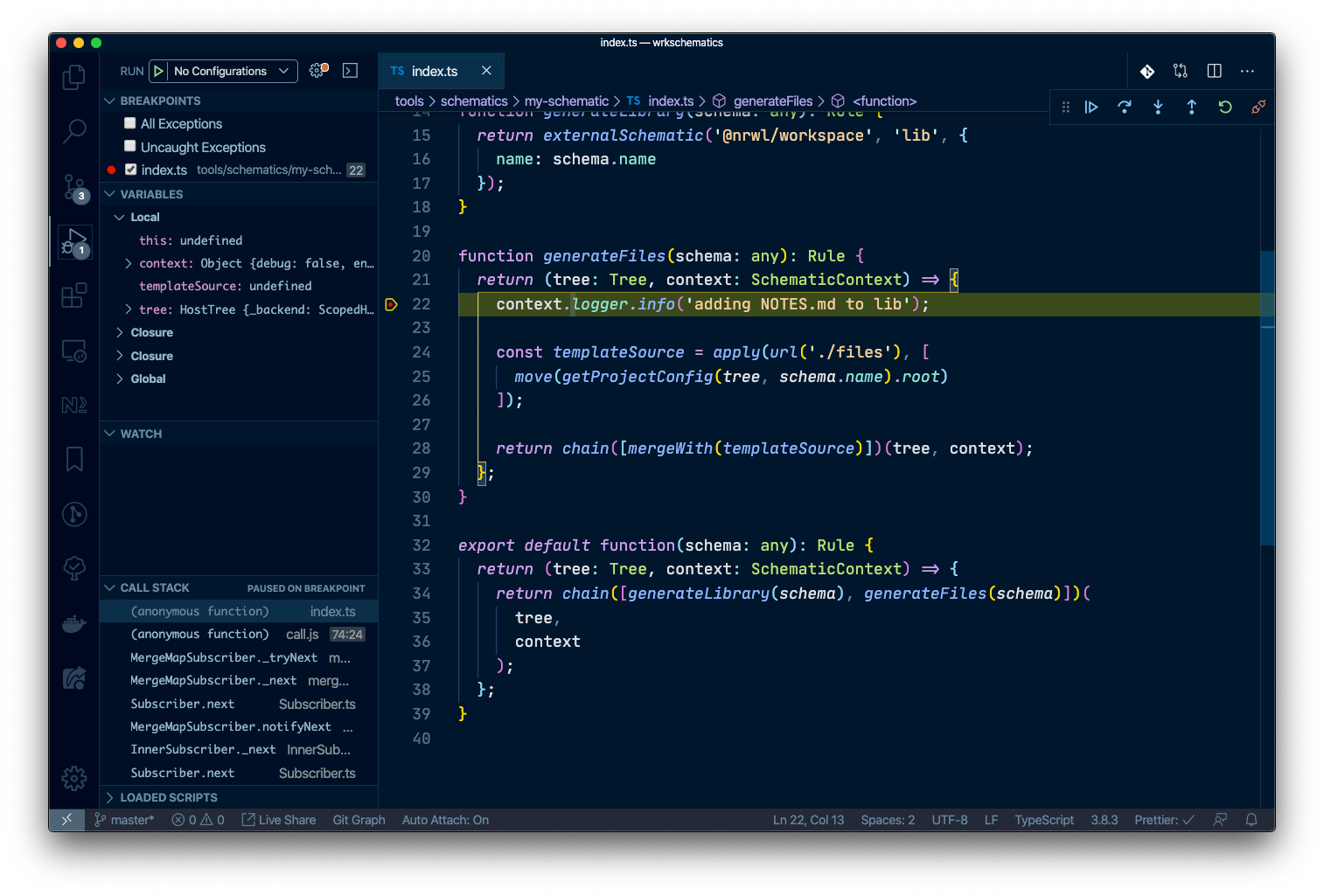
Section titled “Debugging generators”With visual studio code
Section titled “With visual studio code”- Open the Command Palette and choose
Debug: Create JavaScript Debug Terminal. This will open a terminal with debugging enabled. - Set breakpoints in your code
- Run
nx g my-generatorin the debug terminal.
Generator schema properties
Section titled “Generator schema properties”Beyond the standard JSON Schema properties like type, description, enum, and default, Nx recognizes several custom properties in your schema.json that control CLI prompting behavior and how Nx Console renders the generator form.
$default
Section titled “$default”Provides a dynamic default value from a runtime source. Used to map positional CLI arguments and other context to schema properties.
{ "properties": { "name": { "type": "string", "$default": { "$source": "argv", "index": 0 } } }}| Source | Description |
|---|---|
{ "$source": "argv", "index": 0 } | Uses the positional CLI argument at the given index |
{ "$source": "projectName" } | Uses the current project name. Also triggers project autocomplete in the CLI and Nx Console |
{ "$source": "workingDirectory" } | Uses the current working directory relative to the workspace root |
{ "$source": "unparsed" } | Collects any extra arguments not matched by other schema properties |
x-prompt
Section titled “x-prompt”Defines an interactive prompt shown when the option is not provided on the command line. Can be a simple string or a structured object for more control.
{ "properties": { "style": { "type": "string", "description": "The file extension to be used for style files.", "x-prompt": { "message": "Which stylesheet format would you like to use?", "type": "list", "items": [ { "value": "css", "label": "CSS" }, { "value": "scss", "label": "SASS (.scss)" }, { "value": "less", "label": "LESS" } ] } } }}Short form: "x-prompt": "What name would you like to use?" — displays a simple text prompt.
Long form object properties:
| Property | Type | Description |
|---|---|---|
message | string | The prompt text displayed to the user |
type | string | Prompt type: "input", "list", or "confirmation" |
multiselect | boolean | Allow selecting multiple items (for "list" type) |
items | (string | { label: string, value: string })[] | Choices for "list" type prompts |
In Nx Console, the message is shown as a tooltip on the field and items labels are shown as option descriptions.
x-priority
Section titled “x-priority”Controls the visibility and ordering of an option in the Nx Console Generate form.
{ "properties": { "name": { "type": "string", "x-priority": "important" }, "skipFormat": { "type": "boolean", "x-priority": "internal" } }}| Value | Effect |
|---|---|
"important" | Field appears near the top of the form, after required fields |
"internal" | Field is hidden from the form by default |
Options in the Nx Console form are sorted: required > important > regular > deprecated > internal.
x-deprecated
Section titled “x-deprecated”Marks an option as deprecated. Deprecated options are sorted to the bottom of the form in Nx Console and display a warning.
{ "properties": { "oldOption": { "type": "string", "x-deprecated": "Use 'newOption' instead." } }}The value can be true (boolean) or a string with the deprecation reason/migration guidance.
x-dropdown
Section titled “x-dropdown”Tells both the CLI and Nx Console to present a dropdown populated with workspace data.
{ "properties": { "projectName": { "type": "string", "x-dropdown": "projects" } }}Currently only "projects" is supported, which shows all projects in the workspace.
x-hint
Section titled “x-hint”Displays a hint popover next to the field label in the Nx Console Generate form. Use this for brief contextual guidance that doesn't belong in the main description.
{ "properties": { "name": { "type": "string", "x-hint": "You can provide a nested path like my-dir/my-lib" } }}x-completion-type and x-completion-glob
Section titled “x-completion-type and x-completion-glob”These properties are used by Nx Console's language server to provide autocomplete suggestions when editing configuration files like project.json or nx.json.
{ "properties": { "tsConfig": { "type": "string", "x-completion-type": "file", "x-completion-glob": "tsconfig*.json" } }}x-completion-type value | Description |
|---|---|
"file" | Autocomplete with file paths (optionally filtered by x-completion-glob) |
"directory" | Autocomplete with directory paths |
"projects" | Autocomplete with workspace project names |
"targets" | Autocomplete with available target names |
"targetsWithDeps" | Autocomplete targets, including ^target syntax for dependencies |
"tags" | Autocomplete with project tags |
"projectTarget" | Autocomplete with project:target format |
Generator utilities
Section titled “Generator utilities”The @nx/devkit package provides many utility functions that can be used in generators to help with modifying files, reading and updating configuration files, and working with an Abstract Syntax Tree (AST).